General Information
- Product: CR67-4-S
- Serial Number: 258807
- Ensenso SDK Version: 4.3.1057
- Operating System: Windows 11
Problem / Question
Hi,
I am using the GenTL producer via Halcon to produce a point cloud with texture (as it was suggested in this post Capturing images with a single frame grabber in MVTec Halcon )
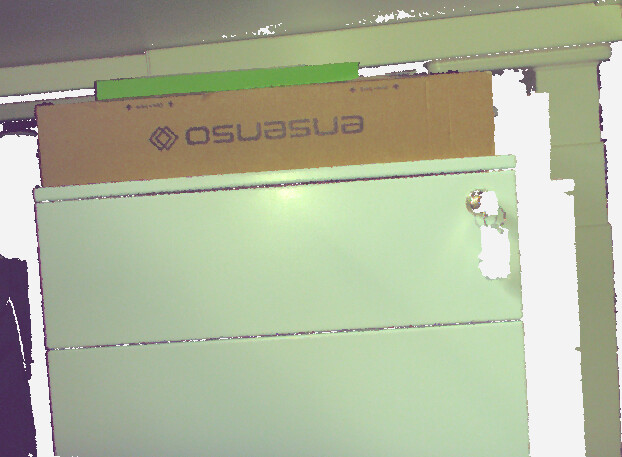
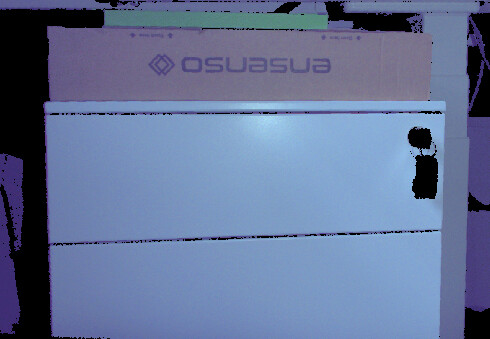
One difference we recognized between this approach and the rendered point cloud generated in the NxView application is the white balance of the RGB image. It seems like the RGB image via GenICam consistently shows higher blue values, even though no other settings were applied. The only changeable parameters for the intensity image are ExposureTime and Gain. Is there a way to correct the white balance/ adjust the RGB values as well?
Attached are 1) a screenshot of a point cloud as produced by NxView, 2) the same image created via GenICam using Halcon.